How To Add A Mailbox On iPhone
Learn how to add another mailbox to iPhone in under 5 minutes using Apple Mail, Gmail, or Outlook apps, with step-by-step instructions for automatic and manual setup.
![How to add a mailbox on your iPhone [step-by-step guide]](https://www.hubspot.com/hs-fs/hubfs/add-mailbox-iphone.jpg?width=1344&height=1007&name=add-mailbox-iphone.jpg)
Adding popular email providers like Gmail, Yahoo, iCloud, and Outlook.com to your iPhone takes less than 60 seconds through Apple Mail's automatic configuration:
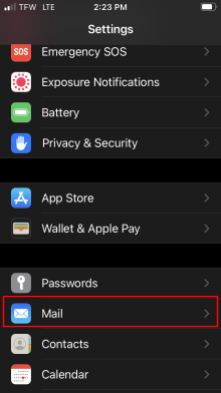
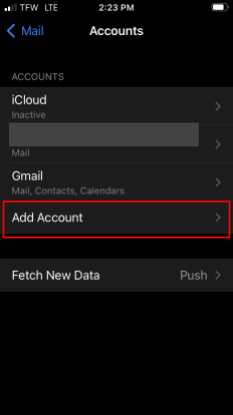
1. Navigate to Settings > Mail > Accounts to get started.
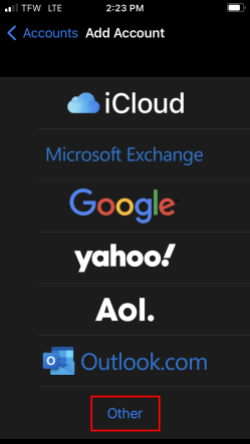
2. Tap “Add Account” and choose your email provider (Gmail, iCloud, Yahoo, Outlook, AOL, or Exchange).
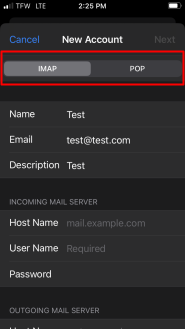
3. Enter your email address and password and tap “Next”.
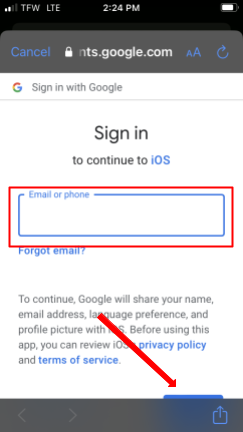
4. Wait 10-15 seconds while Mail verifies and configures your account automatically.
Gmail for iOS supports multiple account types beyond Gmail addresses, including Outlook, Yahoo, iCloud, and any IMAP/POP email account, making it a versatile alternative to Apple Mail:
1. Open the Gmail app and tap your profile picture (in the top-right). Select "Add another account" from the account switcher. Then choose your provider:
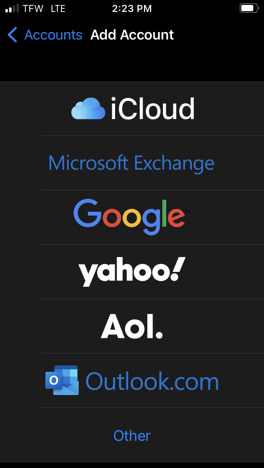
2. Sign in with your credentials; Gmail automatically configures most accounts.
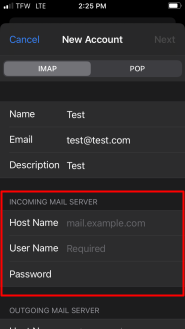
For "Other" accounts, select IMAP or POP3. You will be prompted to enter your incoming server settings (from your provider).
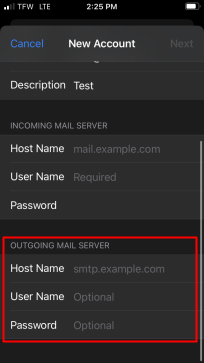
3. Then, configure your outgoing server (SMTP) settings.
4. Choose sync options and folder preferences to complete your setup. Your new mailbox will now appear in the account switcher.
Microsoft Outlook for iOS integrates seamlessly with Office 365, Outlook.com, Gmail, Yahoo, iCloud, and any IMAP email account while providing built-in calendar and file management:
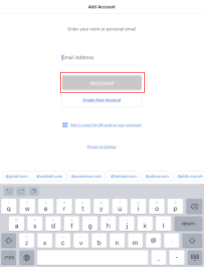
1. Launch the Outlook app → tap Get Started (first-time users) or Settings → Add Account
2. Enter your email address → Outlook auto-detects most providers
3. Sign in with your password → complete any two-factor authentication
4. Grant permissions for calendar and contact sync (optional)
5. Add more accounts by repeating the process from Settings

Now that your mailbox is set up, make every email count with a signature that actually gets noticed. Create a professional iPhone signature that drives results for free with HubSpot's Email Signature Generator.