How To Add A Signature In Apple Mail
Use HubSpot’s Apple Mail Signature Generator to create a professional email signature. Then, learn how to add your signature to Apple Mail.

1. Open the Mail application on your device.

2. Navigate to Mail > Settings (formerly Preferences).
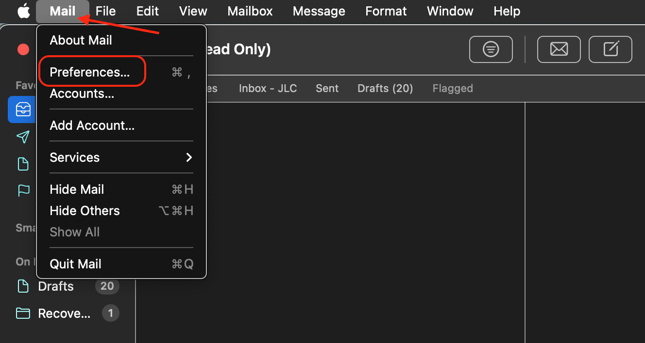
3. Select the Signatures tab.
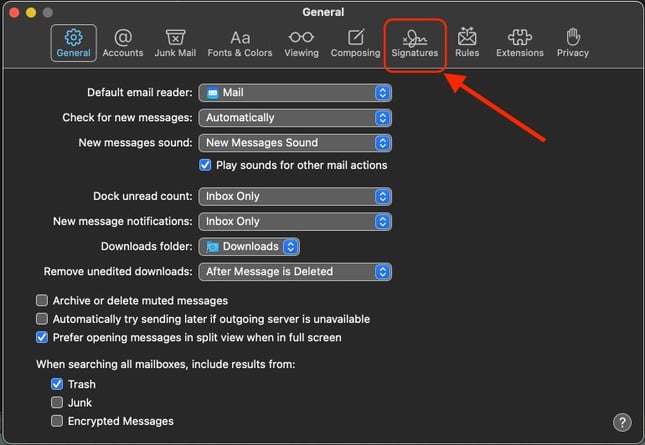
4. Select the account that you want to create a signature for.

5. Click the + button to create new signature
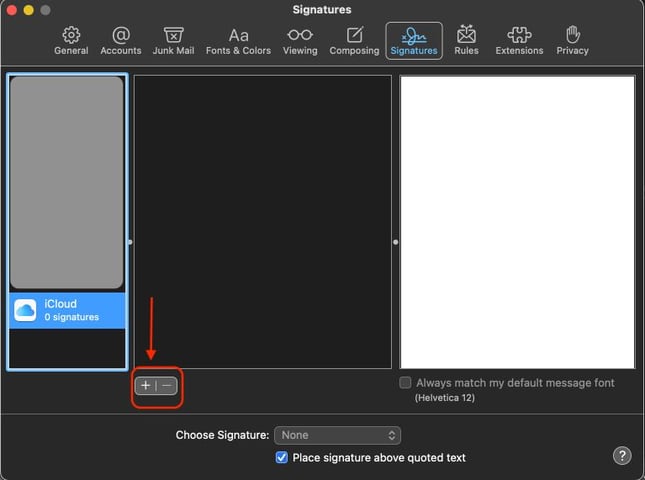
6. Enter your signature details in the preview pane. You can add text, change formatting, or drag an image into the preview box.
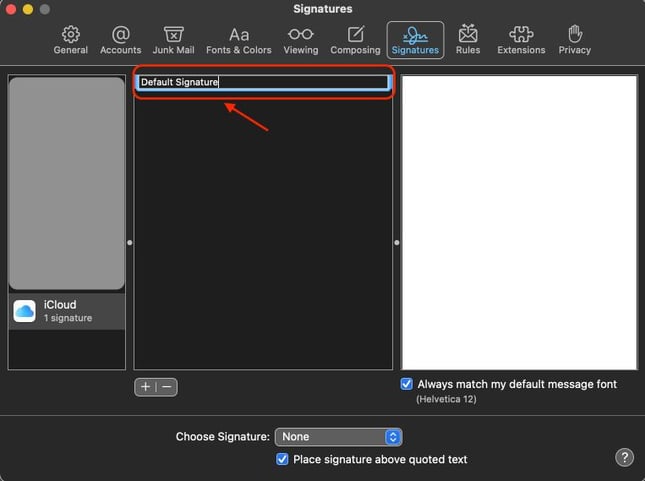
Following these steps, you have created your own email signature for Apple Mail to use across all your email communications moving forwards.
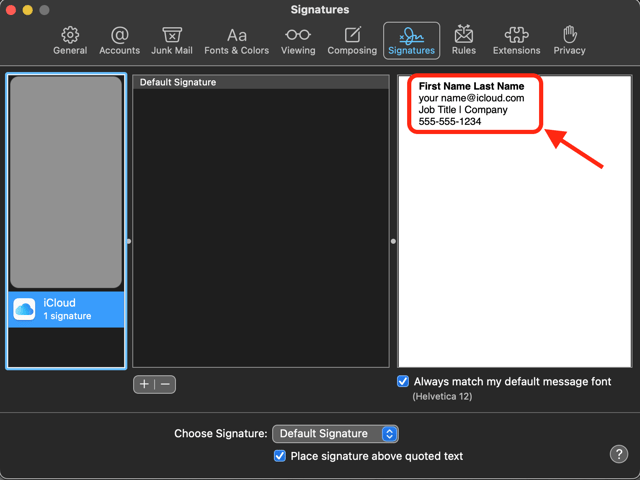
Configuring automatic Apple email signature insertion saves time per email and ensures consistent brand representation.
Mac Automatic Signature Setup:
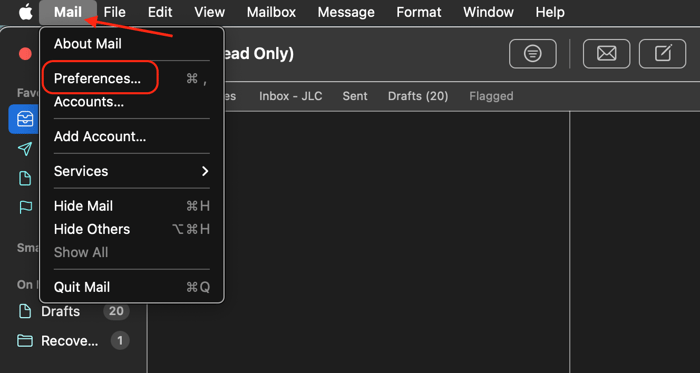
1. Open Mail > Settings/Preferences.
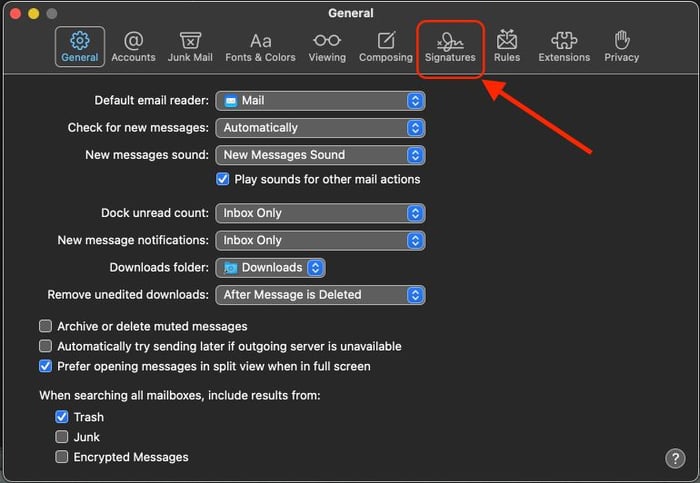
2. Navigate to ‘Signatures’ and select an email account from the left column.
3. Choose a signature from middle column
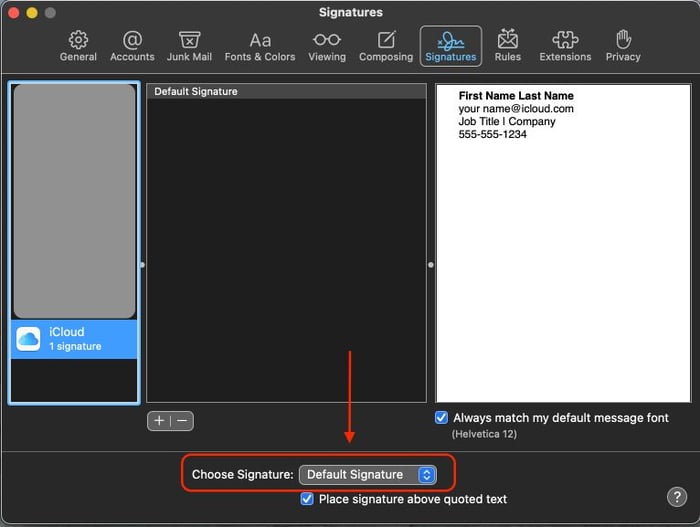
4. Use the "Choose Signature" dropdown to set this signature as the default.
Creating a Mac mail signature is straightforward, but ensuring it displays perfectly requires attention to detail. These proven formatting strategies will help your signature maintain its professional appearance across devices.
Mobile signature creation on iPhone presents unique challenges due to iOS limitations. The Settings > Mail > Signature interface provides only basic text input, forcing users to employ workarounds for professional signatures.
iPhone Signature Workarounds:
1. Create your signature on the desktop first.
2. Email your signature to your iPhone.
3. Copy the formatted signature from your email.
4. Paste the signature into Settings > Mail > Signature.
5. Verify the formatting preserved correctly.
Common iPhone signature issues include image scaling problems, font substitution on recipient devices, and hyperlink color changes. However, HubSpot’s iOS Mail Signature Generator creates signatures that maintain format accuracy even when viewed on different platforms.
Adding logos to Apple Mail signatures requires specific techniques to ensure images display correctly across all email clients. Use HubSpot’s Mac Email Signature Creator to add logos quickly and seamlessly to your Apple Mail email signature.
Mac Desktop:
1. Resize logo to a maximum 200px width.
2. Save as a PNG with a transparent background.
3. Drag your image directly into the signature editor.
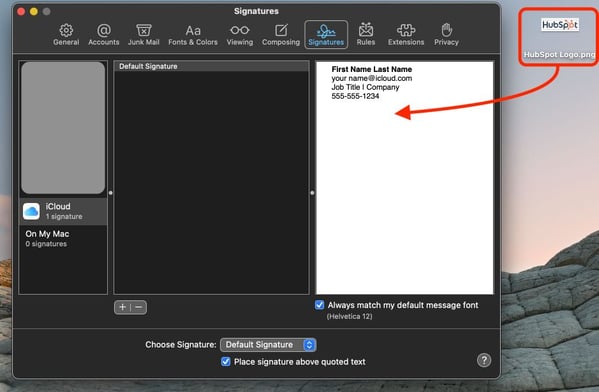
4. Position using your spacebar (not formatting tools)
5. Test by sending an email to yourself
Apple Mail's HTML signature implementation requires advanced techniques since the application lacks native HTML import functionality. Professional signatures demand HTML for consistent formatting across email clients.
While mastering the manual workaround takes technical skill (learn the complete process in our guide on how to add a HTML signature in Apple Mail), there's a faster solution– HubSpot's Apple Mail HTML signature generator. Simply design your signature using our easy-to-use visual signature builder, then follow these straightforward steps to implement it in Apple Mail:
1. Copy your generated HTML signature. 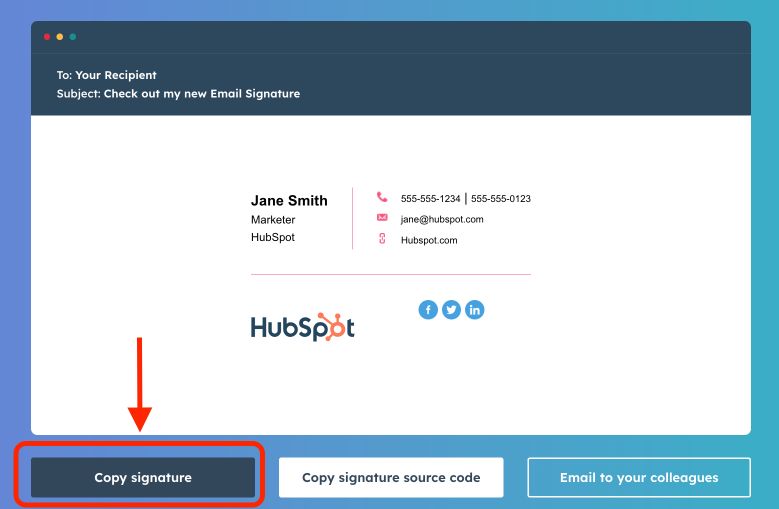
2. Open your mail app, then navigate to “Mail” and “Preferences”.
3. Select “Signatures”. Label your new signature, then uncheck the box that says ‘Always match my default message font’.

4. Paste your signature into the designated field and save your settings. Your professionally formatted signature will now automatically appear in every new email you compose.
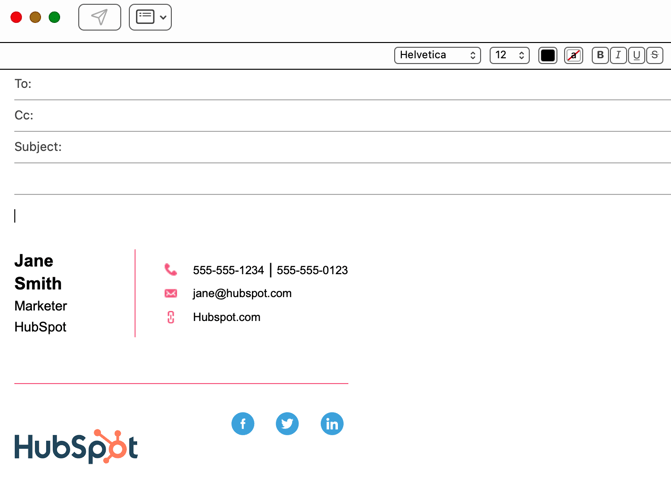

HubSpot's free Apple Mail Signature Generator creates Apple Mail-compatible signatures in minutes – faster than any other solution. Get an email signature for Mac Mail complete with social icons, contact details, and branding elements that maintain pixel-perfect alignment everywhere. Use this Apple Mail Signature Creator for professional signatures that work perfectly across all devices – zero HTML knowledge required!