<link rel="stylesheet" href="https://www.hubspot.com/hubfs/hub_generated/template_assets/1/207928094053/1776957910476/template_footer-core-non-critical.min.css">
Logo - Full (Color)

How To Create A Distribution List In Outlook

Learn how to create an email distribution list in Outlook to save time daily when messaging teams, departments, or recurring groups. This tutorial will walk you through creating a mailing list in Outlook 365, Windows, and Mac. 

Man creating distribution list in Outlook on his laptop

Creating A Distribution List In Outlook In 2026

An Outlook distribution list – also called a Contact Group – is a saved collection of email addresses that functions as a single recipient, letting you send emails to multiple contacts simultaneously without entering addresses individually. Distribution lists are available in all Outlook versions, including Outlook 365 (web), Outlook for Windows, and Outlook for Mac, at no additional cost.

Distribution lists and professional email signatures solve two different sides of the same problem: getting your emails to the right people, looking the right way. Once your distribution lists are set up, make sure every message you send to them carries a professional Outlook signature. HubSpot's Email Signature Generator creates clean, validated HTML signatures built specifically for Outlook — so your signature renders correctly for every recipient on your list, regardless of whether they're reading in Gmail, Apple Mail, or another email client, without the formatting issues that commonly result from pasting AI-generated or manually coded signature HTML into Outlook's signature editor.

How To Make A Distribution List In Outlook

How To Create A Distribution List In Outlook 365

Outlook 365's web-based distribution list creator enables instant group formation without software installation. Use the following steps to create a distribution list in Outlook 365: 

1. Access People Module: Launch outlook.office.com and click the People icon (the grid of 9 dots) in the upper left corner. 

How to create a distribution list in Outlook 365: Click the People icon on the upper left corner of the page.

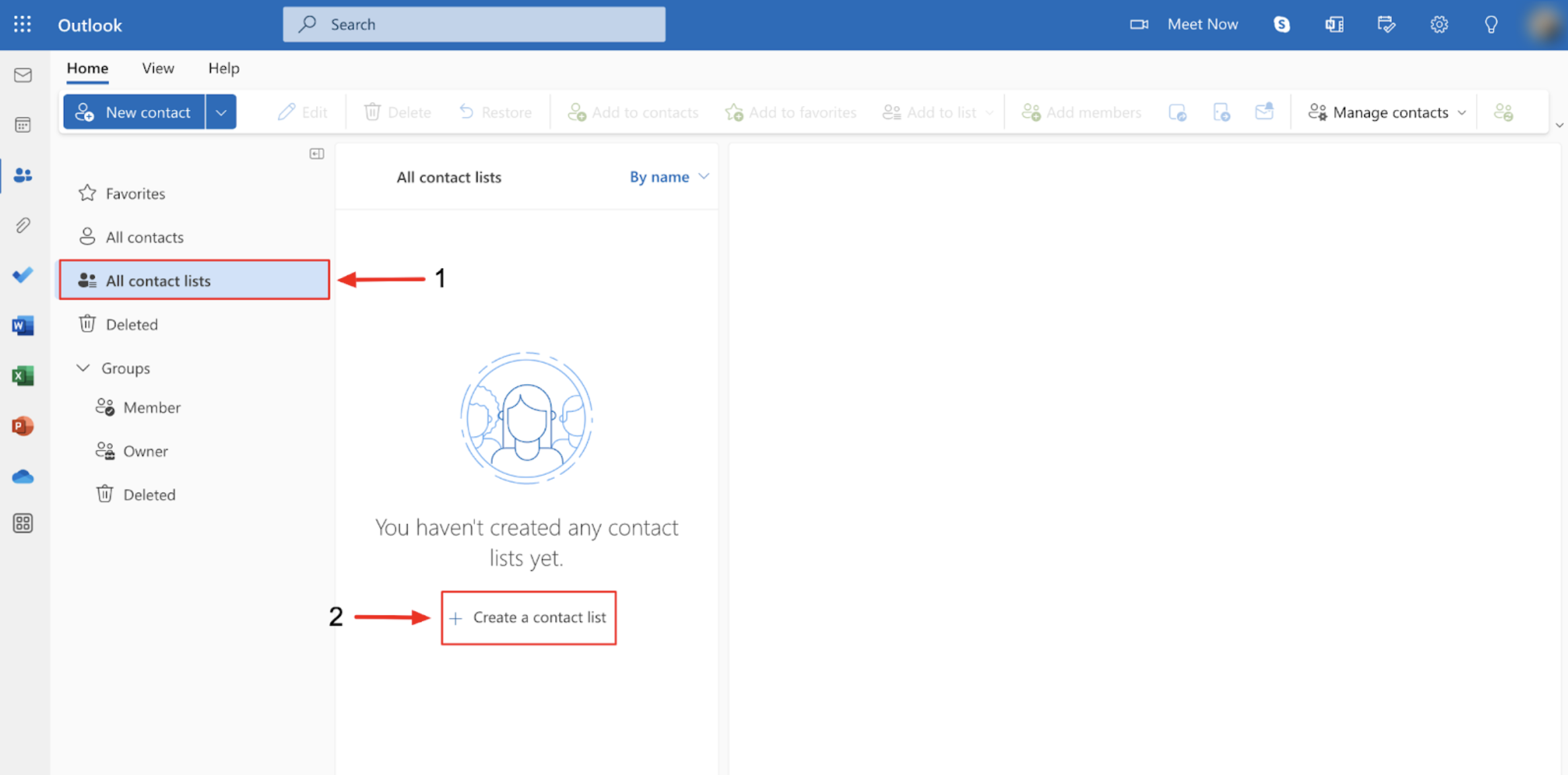
2. Initialize Contact List Creation: Click "All contact lists" in the left navigation panel then select "Create contact list" button (the blue button, top right). The contact list creation window will open automatically. 

How to create a distribution list in Outlook 365: Click All contact lists > Create a contact list.

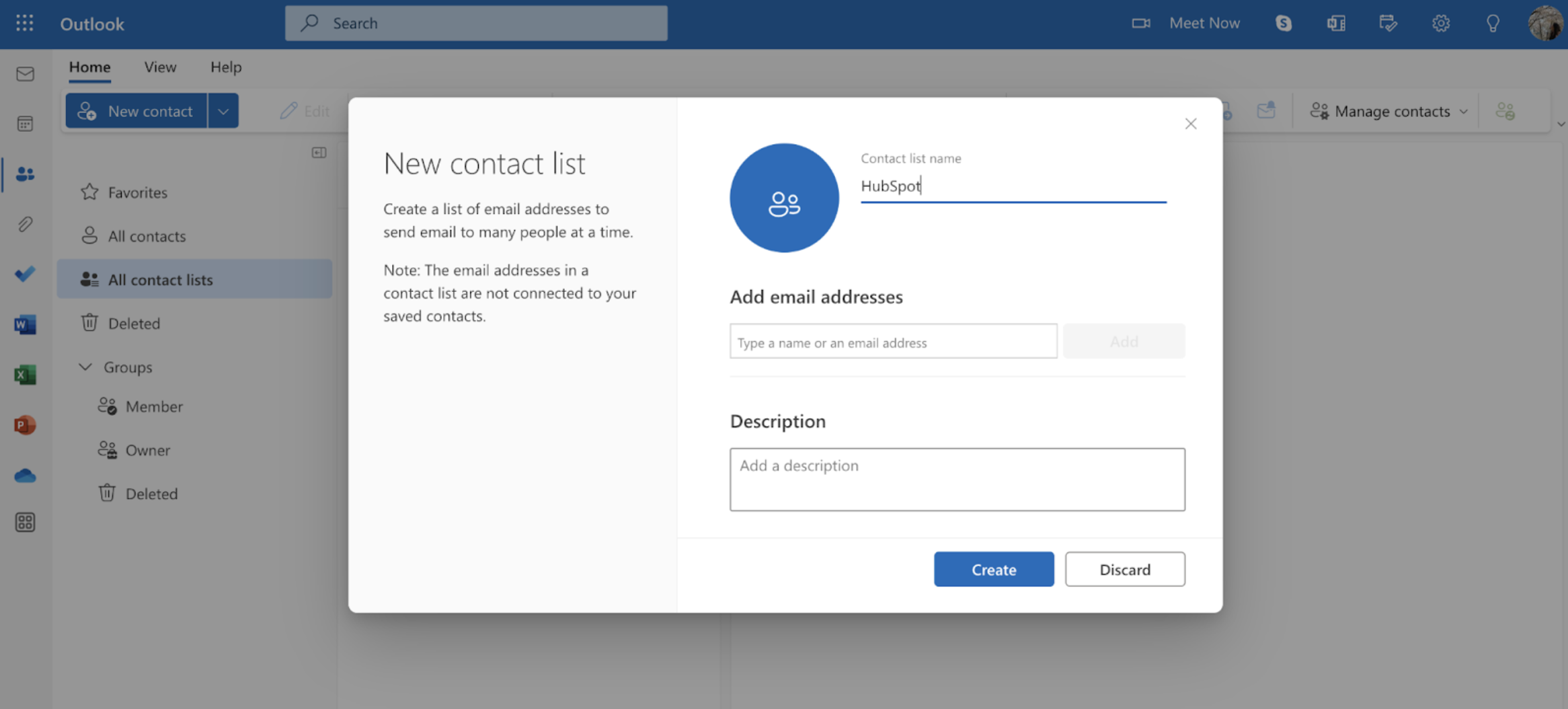
3. Configure Your List Details: Enter a descriptive list name (e.g., "Marketing Team Q1 2026") and add an optional description for future reference (recommended for lists over 10 members)

How to create a distribution list in Outlook 365: Add details to the contact list.

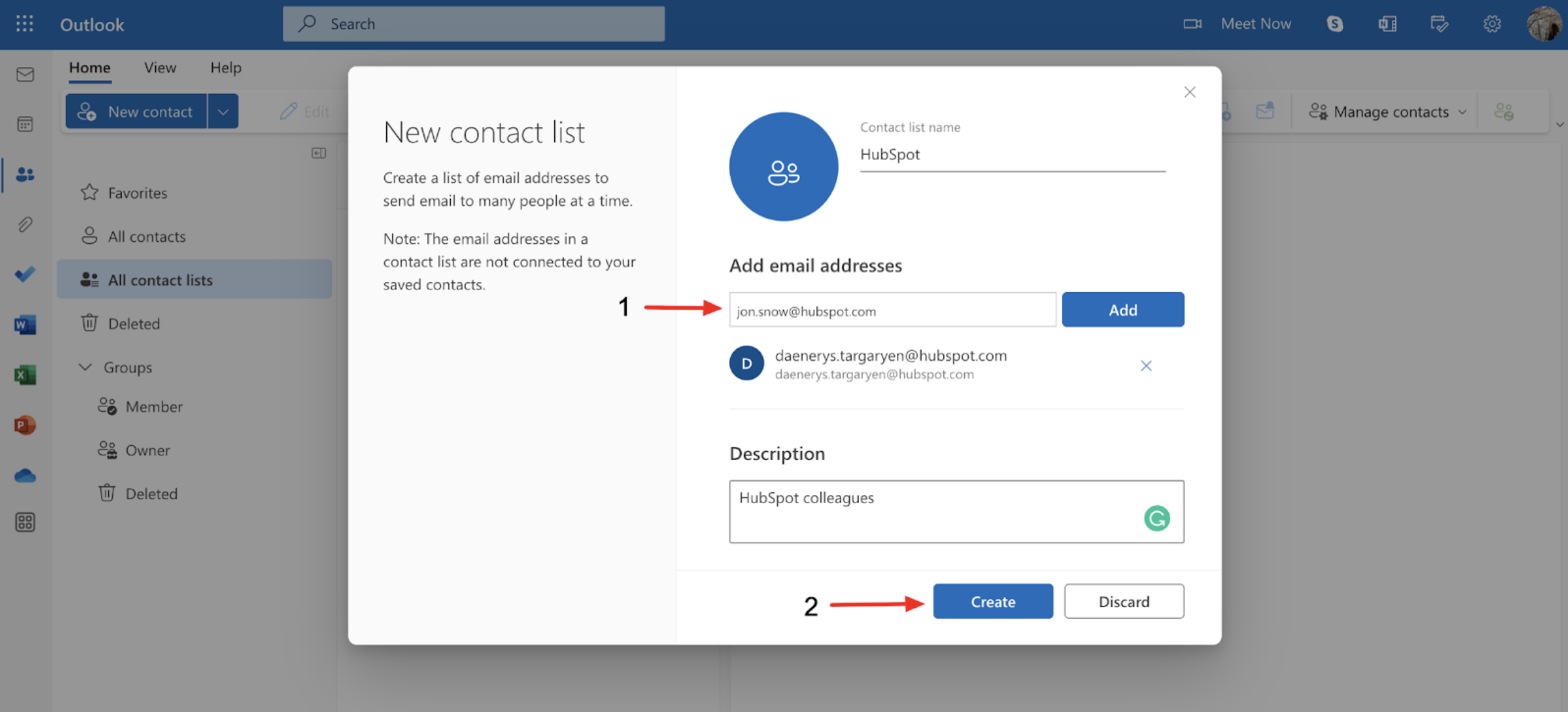
4. Add Members To Your Distribution List: Input email addresses using semicolon separation or the Enter key. Verify all addresses show green checkmarks. 

How to create a distribution list in Outlook 365: Enter the email addresses of the contacts you want to include.

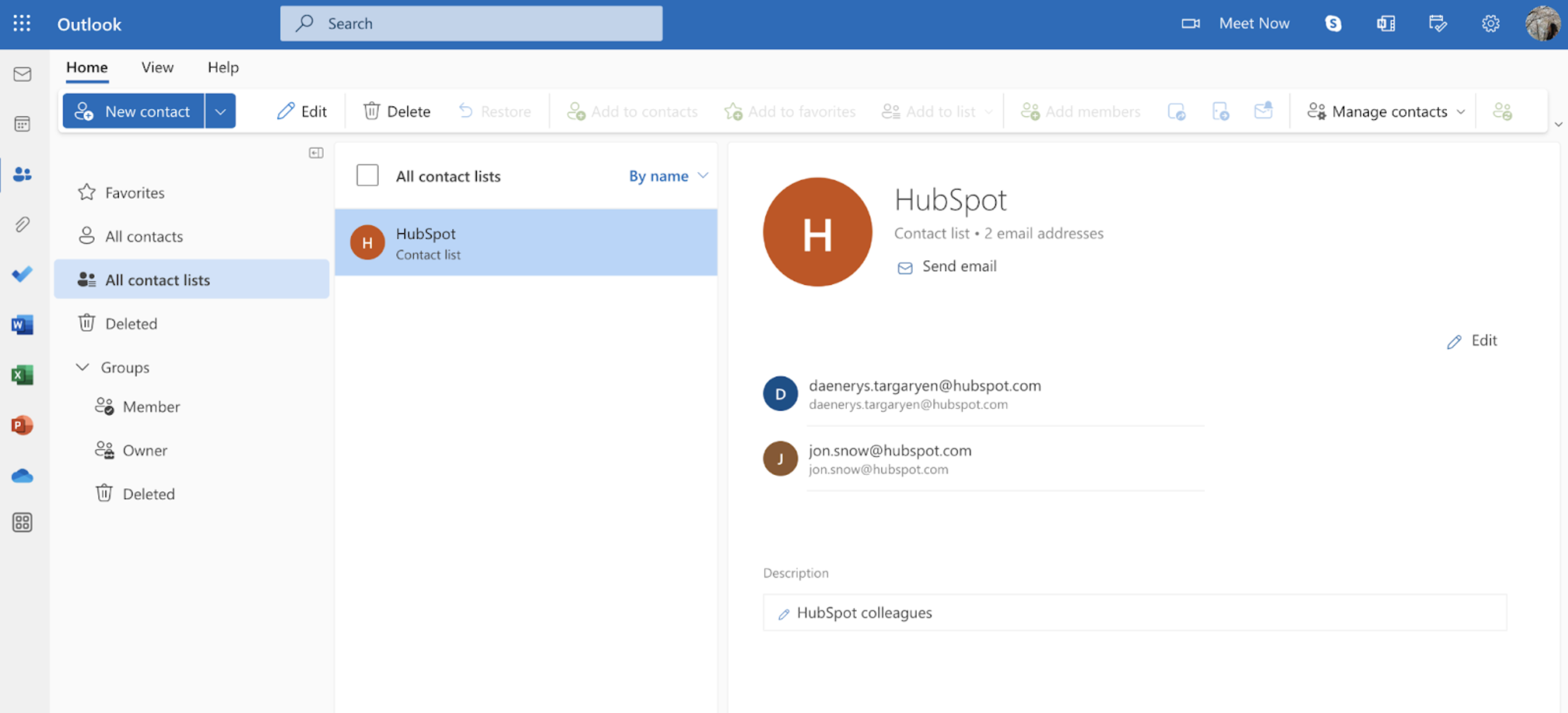
5. Finalize and Save: Click "Create" to save your distribution list. The list will appear immediately in your contact lists. 

You just learned How to create a distribution list in Outlook 365.

How To Edit A Distribution List In Outlook

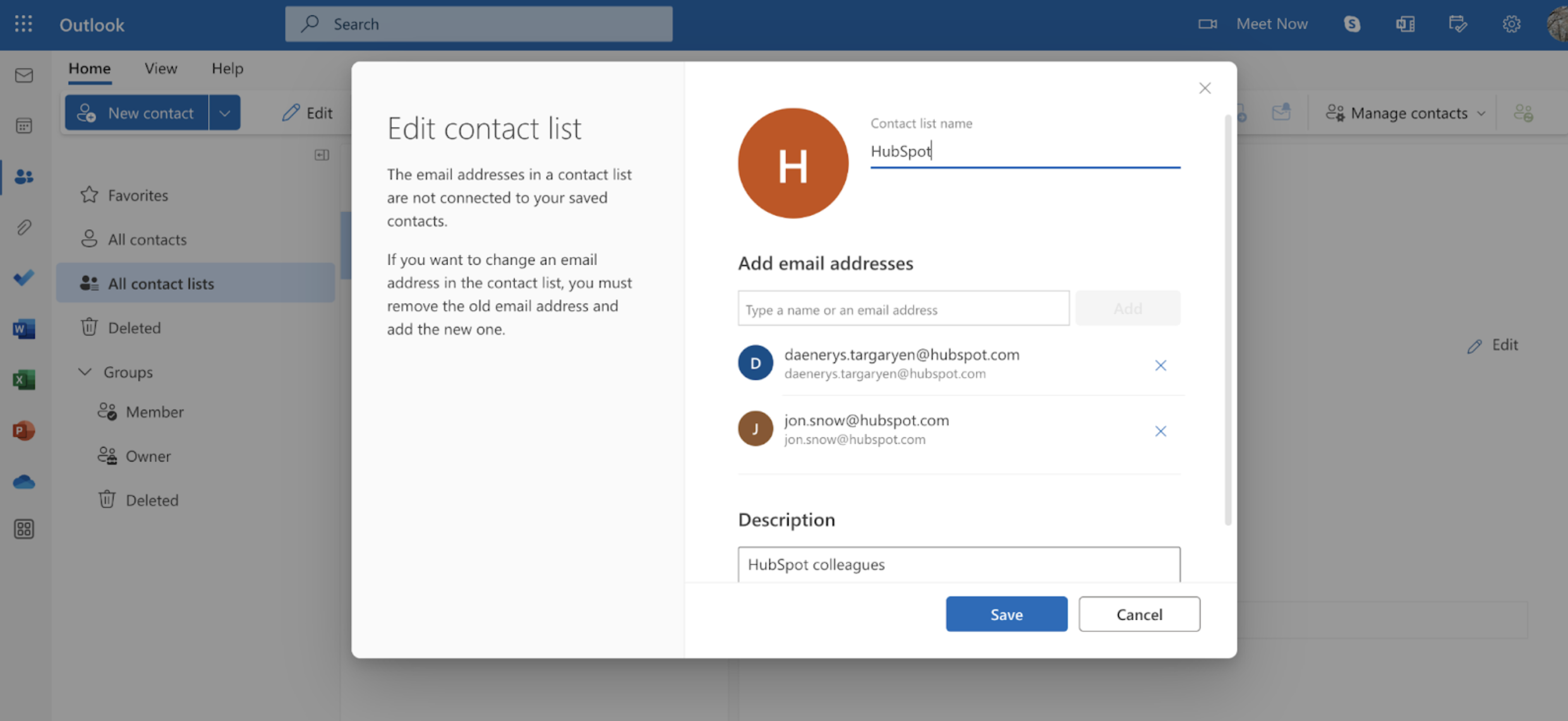
Distribution lists in Outlook require regular maintenance, as email addresses can change regularly. This makes it essential to know how to edit and update a distribution list in Outlook. 

1. Locate Your Existing List: Navigate to the People/Contacts section and click "All contact lists" or "Contact Groups" to find your target list. 

How to edit distribution lists in Outlook: Choose the distribution list you want to change and click Edit.

2. Enter Edit Mode: Select your list and click the "Edit" button in the toolbar. Here, you can update the list name/description, add new members, remove members, and more. 

How to edit distribution lists in Outlook: Add or remove email addresses or edit the list name and description. Save changes.

3. Save Changes: Once you are satisfied with your changes, click "Save". Updates to your Outlook mailing list will propagate immediately. 

Woman creating an Outlook signature using HubSpot's Email Signature Generator

Now that you've learned how to make a mailing list in Outlook, customize your Outlook further by adding a professional email signature. HubSpot's free Email Signature Generator lets you create a branded signature in minutes– simply choose a template, customize your details, and add it directly to Outlook. Ensure every email reinforces your professional brand.

Frequently Asked Questions