Logo - Full (Color)

User Permissions

HubSpot user permissions control who can access specific data, tools, and content within your customer platform account.

  • Control who accesses sensitive data, tools, and content securely

  • Manage team permissions and role changes from one dashboard

  • Audit user activity and adjust access levels as your teams grow

Provide teams with only essential information.

Your teams need to be focused on attracting, selling, and delighting customers; but irrelevant data and processes slow them down. User permissions ensure your data is protected and your teams are seeing the right information at the right time.

Leverage HubSpot’s user permission tools to control access across areas of the HubSpot customer platform such as records, content, and tools in order to make your teams more focused and efficient.


  1. Oversee user permissions in one simple location.

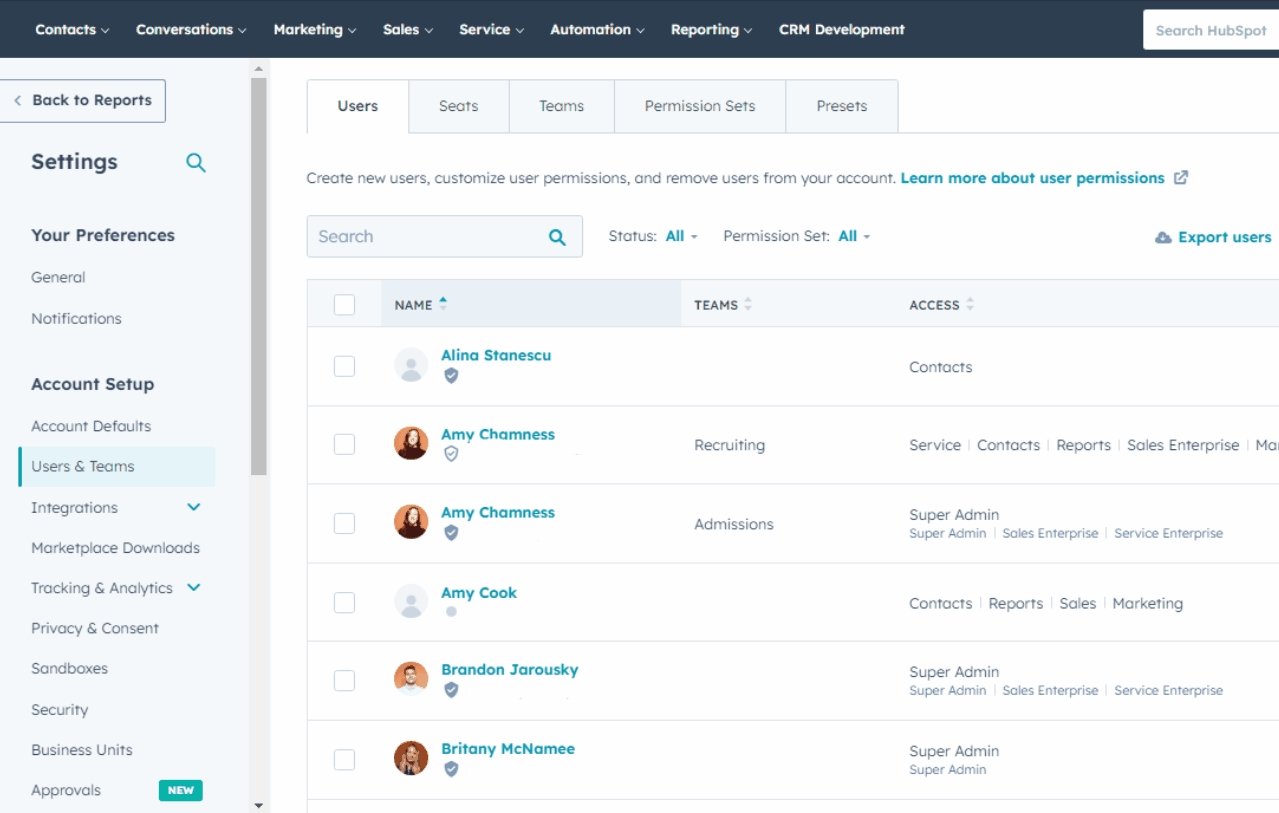
    Managing user permissions can be complicated. Without an easy-to-use solution, you’ll waste valuable time on administrative tasks. HubSpot’s permission management tools are built directly on the customer platform, so you can manage your teams with the ease of use you deserve.
  2. Monitor user activity to improve key processes.

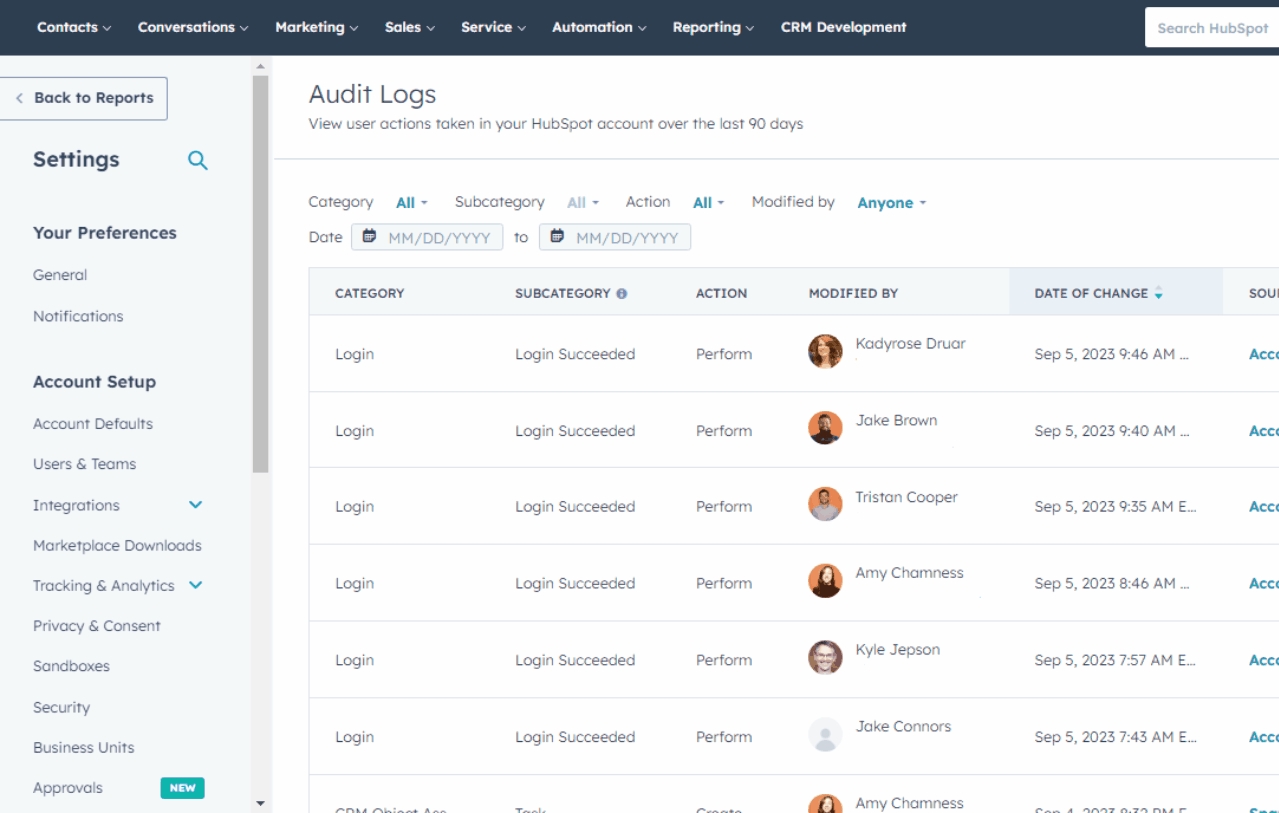
    Reviewing user activity is a critical step in troubleshooting and evolving business processes. Keeping an eye on the actions of users can quickly identify any issues that might be slowing down work. Use HubSpot’s user auditing tools to gain valuable insights and recommendations to help boost productivity.
  3. Keep Marketing and Sales organized.

    A strong partnership between Marketing and Sales drives more revenue — but cluttered workspaces distract from that mission. Set up HubSpot’s user permission tools to ensure your marketing and sales teams can easily locate their core assets and execute a clean go-to-market motion.

Have questions? Give us a call and we'll walk you through it.

+1 857-829-5060

Frequently Asked Questions

Find quick answers to common questions about HubSpot's user permissions features. 

Setting up user permissions in HubSpot is quick and intuitive 

  • Create teams – Go to Settings > Users & Teams to organize users by role (Sales, Marketing, Customer Service)
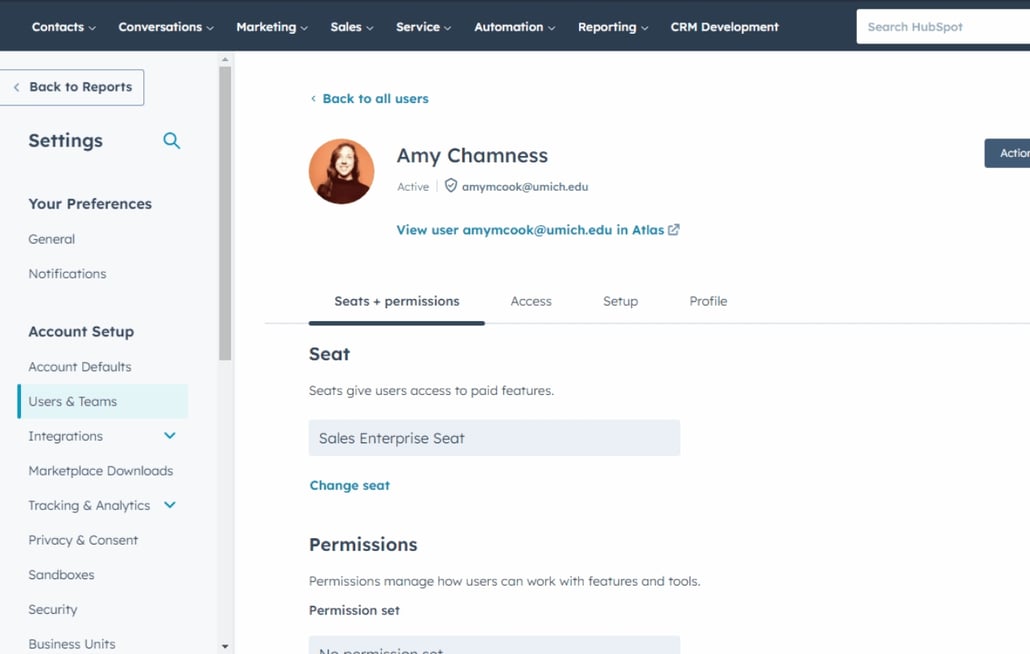
  • Set access levels – Define what each team can view, edit, or delete for contacts, deals, and tools
  • Apply permissions – Assign users to teams and use permission sets for consistent access control
  • Test and adjust – Review user activity through audit logs and modify permissions as needed

HubSpot’s customer platform allows marketing, sales, customer service, and operations teams to work in one place without stepping on each other’s toes. User permissions can be configured so users only see relevant content. 

Setting up user permissions in HubSpot is easy! Common features used when setting up user permissions are:
  • Teams: Organize users into groups to streamline your business processes.
  • Permission sets: Quickly configure user permissions and see faster activation rates.
  • Audit logs: Monitor user activity and easily troubleshoot issues as they arise. 

HubSpot’s user permission tools are a great fit for any business that has multiple users working in a single tool. User permissions make any sized scaling team more efficient and secure by organizing and restricting access to data. 

You can get started with user permissions in HubSpot for free. Advanced permissioning functionality is available in certain premium editions of Marketing Hub, Sales Hub, Service Hub, CMS Hub, and Data Hub (see pricing page).

Updating user permissions in HubSpot is simple and can be done anytime. Go to Settings > Users & Teams, find the person's name, and click on their profile. From there, you can change their team assignment, modify their permission set, or adjust individual access levels for specific tools and data. Changes take effect immediately, so the user will see their updated access right away. 

You can also use audit logs to track what permissions were changed and when, which helps with compliance and troubleshooting.